If your organization relies on AWS IAM Identity Center for workforce access, you can now extend that access across multiple AWS Regions with multi-Region replication. Previously, AWS access portal was only available in one Region, when you add an additional Region, users get an active access portal endpoint there. If the primary Region experiences a disruption, they can continue working through the additional Region. This enhancement also enables you to deploy AWS managed applications in additional Regions closer to your users, which reduces latency and helps meet regional compliance requirements. Meanwhile, you maintain centralized control by managing Identity Center configurations from the primary Region.
In this post, you’ll learn how to configure multi-Regions support, including multi-Region replication, encryption setup, adding Regions, updating your identity provider (IdP), and testing the setup end to end.
Prerequisites and considerations
Before enabling multi-Region support, confirm your environment meets these requirements and understand how this change will affect your existing setup.
- Confirm that your currently deployed AWS managed applications support Identity Center configured with a customer managed KMS key, and that applications you plan to deploy in the future also support this configuration. See the AWS managed applications that integrate with IAM Identity Center table in the Identity Center User Guide to identify which applications support customer managed KMS key with Identity Center.
- Additionally, for AWS managed applications you plan to deploy in additional Regions, verify that they support Identity Center configured with both customer-managed KMS keys and multi-Region deployment. Consult the AWS managed applications that integrate with IAM Identity Center table in the Identity Center User Guide.
- You must be using an organization instance of Identity Center connected to an external identity provider (IdP), such as Okta or Microsoft Entra ID. Review documented IdPs in External identity providers.
- Both the primary and additional Regions must be commercial Regions enabled by default.
Considerations
Keep the following limitations in mind before you begin:
- IAM Identity Center account instances don’t support multiRegion replication.
- Microsoft Active Directory and IAM Identity Center directory as identity source aren’t supported for multi-Region replication.
- AWS opt-in Regions aren’t supported.
- The AWS access portal in additional Regions doesn’t support the custom alias (in other words, customer-chosen subdomains).
- AWS account access through additional Region relies on already provisioned permissions; new permission set assignments and group memberships can be managed only in the primary Region and are then automatically replicated to additional Regions.
Walkthrough
To set up multi-Region support, you’ll follow three steps: creating and configuring a customer-managed KMS key with Identity Center, enabling the additional Region in the Identity Center console, and updating your identity provider with the new regional URLs and bookmark applications.
Important: Your Identity Center instance operates on a primary-replica model where instance-level configuration changes must be made in the primary Region, while additional Regions receive read-only replications of your settings and provide Region-local access for your workforce. In this example, you will use Okta as your external IdP, with N. Virginia (us-east-1) as the primary Region and Frankfurt (eu-central-1) as the additional Region.
Before you start, ensure that you’re signed in to the console as an administrator in the same account and Region where your Identity Center instance resides.
Create and configure multi-Region customer-managed KMS keys with Identity Center
First, you must set up a multi-Region customer-managed KMS key with Identity Center in your primary Region and replicate it to additional Regions where you plan to replicate Identity Center. Identity Center uses customer-managed KMS keys for encryption of your identity data such as user attributes. Because the same key material must be available in each Region, you’ll create a multi-Region key — complete this step in the AWS Organizations management account. Before proceeding, confirm that your currently deployed AWS managed applications support customer-managed KMS keys with Identity Center. Each AWS KMS key has usage and storage cost, see AWS KMS pricing page for details.
1. Create the multi-Region customer-managed KMS keys in your primary Region and add it to your Identity Center instance
Follow the blog AWS IAM Identity Center now supports customer-managed KMS keys for encryption at rest, ensuring that you choose Multi-Region Key in Part 1: Create the key and define permissions.
For guidance on configuring your key policy, see the KMS key policy examples for common use cases in the Identity Center User Guide, which provides example policies you can adapt for your specific requirements.
2. Create replica keys in additional Regions
After completing the primary Region setup, create new replica keys in each AWS Region where you plan to replicate Identity Center. To complete this step, follow the documentation in Create multi-Region replica keys.
Note: The replica key automatically inherits the same key policy as the primary customer-managed KMS key. However, future modifications to the key policy must be manually applied to the replica key in each Region. AWS KMS replica keys are independent resources; policy changes on the primary key do not propagate automatically.
Add an additional Region to Identity Center
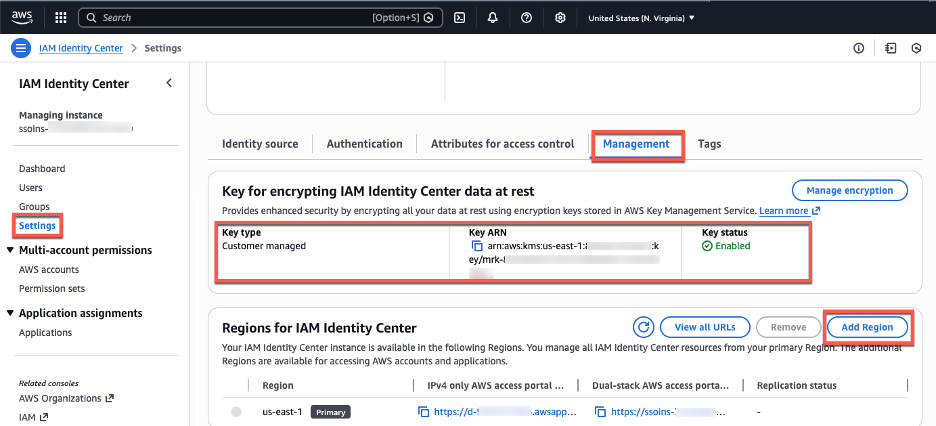
Now that key replication is complete, you can add an additional Region to your Identity Center instance. For this post, use Frankfurt (eu-central-1). If you have a delegated admin account configured, we recommend completing remaining configurations in that account. We will perform this configuration using the console, but you can also use the IAM Identity Center API. For detailed instructions, see Add the Region in IAM Identity Center.
- Open the AWS Management Console.
- In the search bar, enter IAM Identity Center and choose the service.
- In the navigation pane, choose Settings.
- Choose Add Region.
- From the Region list on the following page, select Frankfurt (eu-central-1). Then, choose Add Region.
- You’ll return to the Settings for Identity Center page, where you’ll see the new Region with a Replicating status. A blue banner indicates that Identity Center is replicating your workforce identities, configuration, and metadata to the new Region. After the initial setup (15–30 minutes, depending on the size of your Identity Center instance), future changes replicate within seconds.
- After replication completes, the Replication Status column changes to Replicated. Your Identity Center endpoints in the additional Region are now active.
- Users can now access AWS accounts through both AWS access portal URLs. You can view and copy the enabled portal URLs either from the Region list or by choosing View AWS access portal URLs.
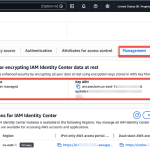
Figure 1: Management tab with encryption and Region information
The Region list shows Regions enabled by default where the customer-managed KMS key was replicated, making them available for you to choose.
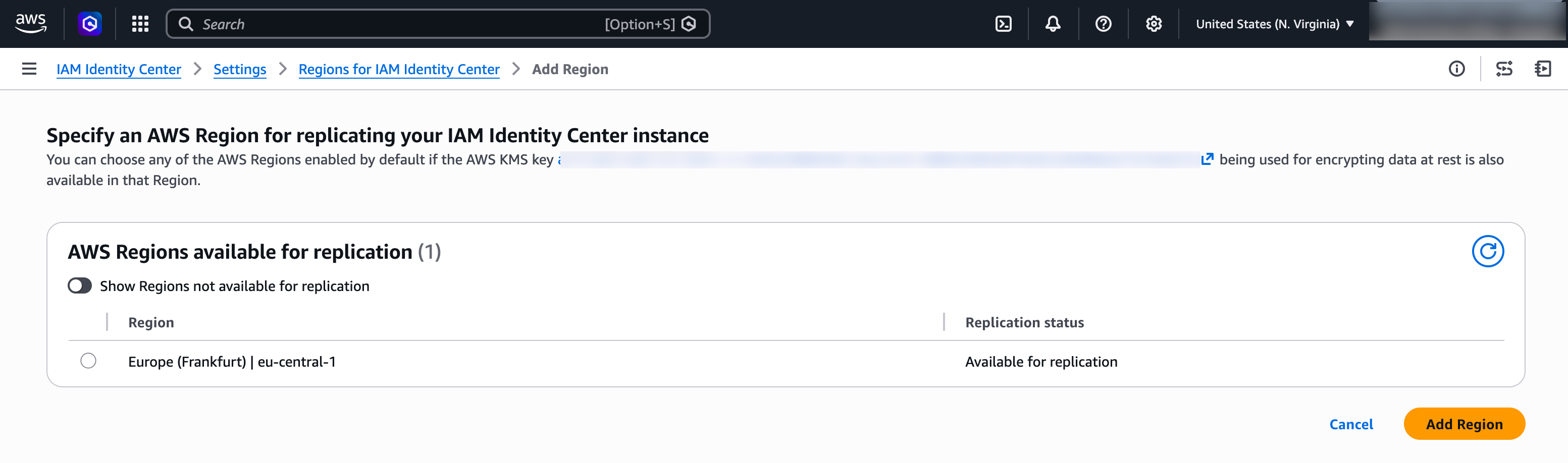
Figure 2: Choose an AWS Region to add
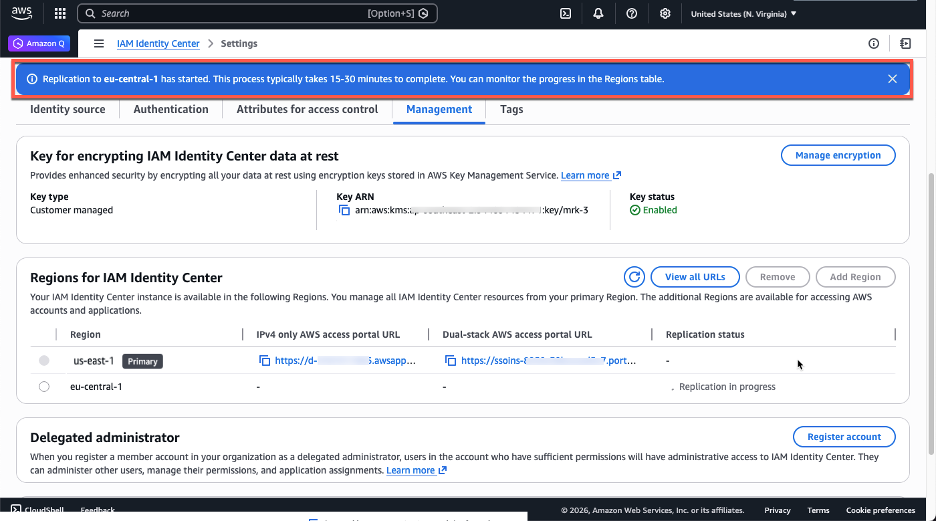
Figure 3: Initial replication to the newly added Region in progress
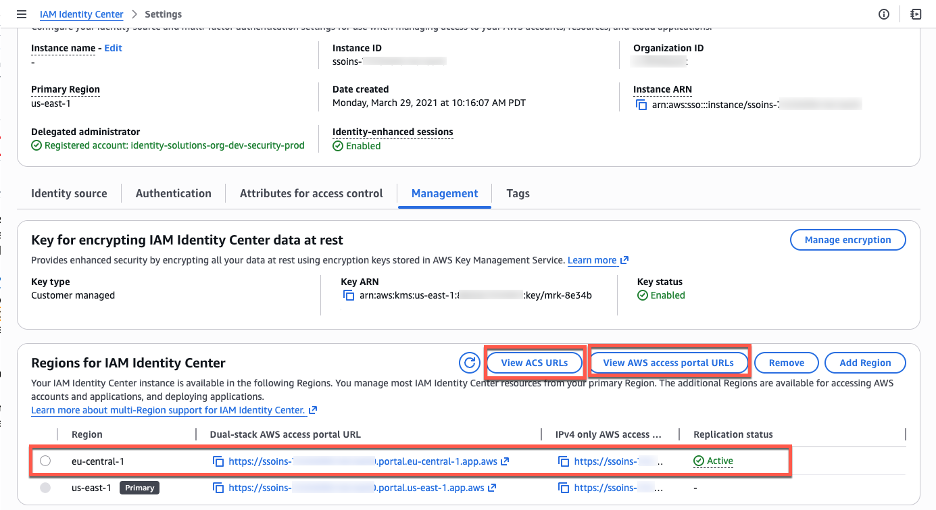
Figure 4: A console view after the initial replication is done
You can view Security Assertions Markup Language (SAML) information, such as ACS URLs, about the primary and additional Regions by choosing View ACS URLs. In the next section you will use both, your AWS access portal URLs and ACS URLs to update your external IdP configuration.
Update your IdP configuration for the additional Region
You’ve successfully replicated your Identity Center instance to the Frankfurt (eu-central-1) Region. This means your workforce identities are now available in that additional Region and can use the new AWS access portal endpoint. Identity Center supports two authentication flows: one where users start from the AWS access portal or AWS managed application (service provider-initiated), and one where users start from their IdP portal (IdP-initiated). With service provider-initiated authentication, when users attempt to authenticate, Identity Center redirects them to your IdP authentication page, and after successful authentication, their authentication response is sent to the Regional SAML assertion consumer service (ACS) endpoint in Identity Center. The ACS endpoint in the additional Region uses a different URL than the primary Region, as shown in the following image.
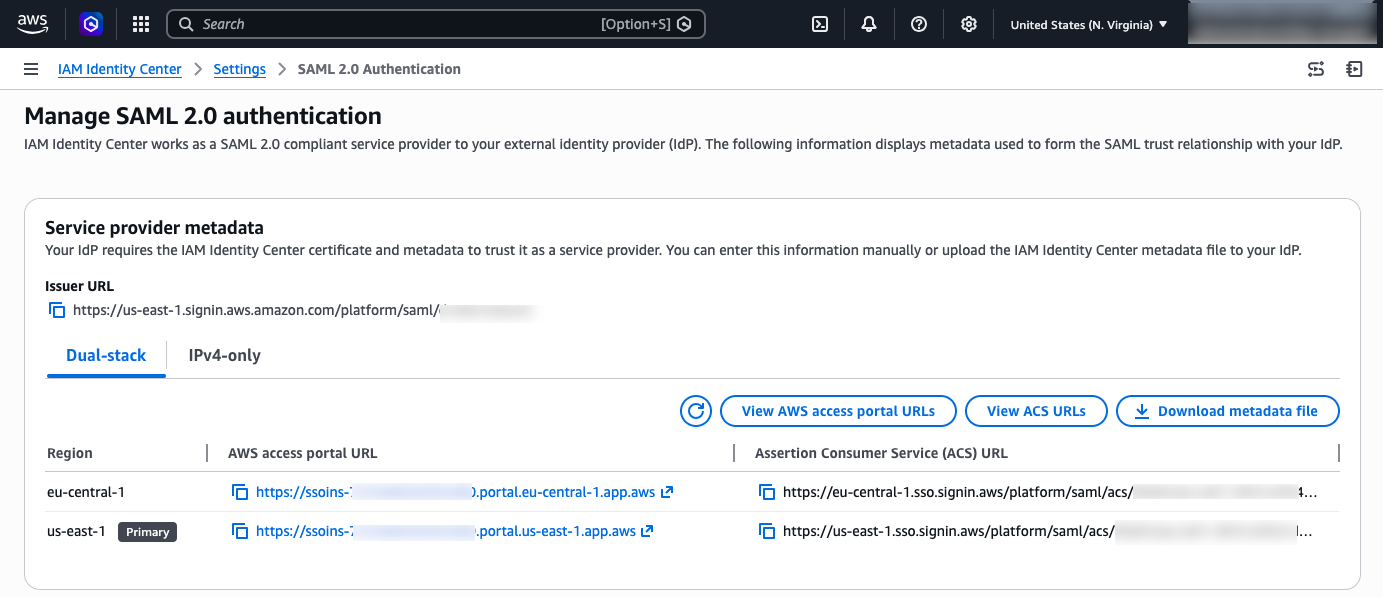
Figure 5: Identity Center URLs
Currently, your IdP only has information about your Identity Center in the primary Region. To successfully redirect users’ authentication responses to the additional Region, you must add the new Regional endpoint to the IdP configuration.
Update the Identity Center application in your IdP:
This update enables service provider-initiated authentication to succeed. In the Identity Center app within your external IdP, add the ACS URL for the additional Region so that the app contains both Regional ACS URLs. Keep the existing URL as the first one in the list, the IdP uses the first URL as the default redirect target for IdP-initated authentication. The additional ACS URL will be used by the IdP to send the authentication response when users sign in using service provider-initiated authentication flows.
As an example, follow the instructions to configure your Identity Center application in Okta:
- Log in to the Okta portal as an Admin.
- Expand the Applications drop-down in the left pane, then choose Applications
- Choose your Identity Center Application
- Select the Sign-on tab and choose Edit in the Settings windows.
- In the AWS SSO ACS URL1 box add the additional ACS URL
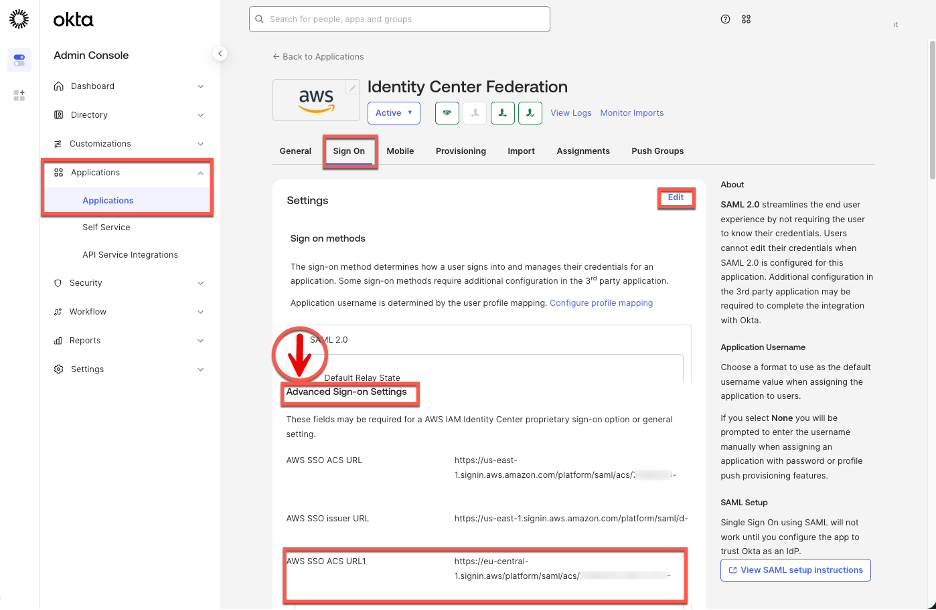
Figure 6: Identity Center enterprise application configuration in Okta
Users can now access accounts starting from the Region-specific AWS access portal, in this case they need to remember two Region specific URLs, one for Frankfurt (eu-central-1) and one for N. Virginia (us-east-1). To accommodate these Region-specific portal URLs, we recommend creating a bookmark application in your IdP. While users can also bookmark the URLs directly in their browsers, providing a bookmark app makes the additional Region discoverable in the IdP portal without requiring each user to manually save a URL.
This bookmark app functions like a browser bookmark and contains only the URL to the AWS access portal in the additional Region. Users can access this bookmark app from their IdP portal to reach the Region-specific AWS access portal. You also must grant your users access to the bookmark app in the external IdP. In Okta, follow the instructions below:
- Log in to the Okta portal as an Admin.
- Expand the Applications drop-down in the left pane, then choose Applications.
- Choose Browse App Catalog
- Search for “Bookmark App”, select it from the list of results, and choose Add in the left pane.
- Choose an app name. For this blog post, the name can be “Identity Center – Frankfurt (eu-central-1)”
- In the URL box, paste the Frankfurt (eu-central-1) specific URL
- Choose Done. You will be redirected to the Bookmark application in the Assignments tab.
- Choose Assign and select the Groups/People that will have access to this application.
After completing this configuration, users will see two Identity Center applications in their IdP portal—one for the primary Region and another for the additional Region.
Figure 7 shows how this configuration appears in the Okta end user dashboard.
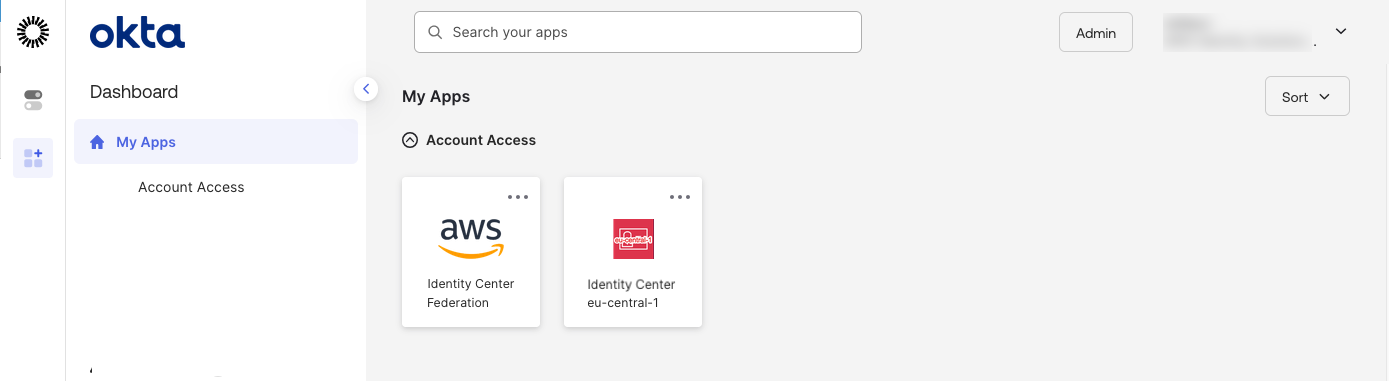
Figure 7: Okta end-user portal with two Region-specific tiles for Identity Center
If you choose the newly created bookmark app, it will direct you to the AWS access portal in the additional Region.
Note: Identity Center supports IPv4-only endpoints, and dual-stack endpoints that support both IPv6 and IPv4. Depending on where your organization is in the process of IPv6 adoption, you will need to configure corresponding Assertion Consumer Service (ACS) URLs in your external IdP and used the corresponding AWS access portal URLs in your IdP bookmark application. For more information, see IPv6 support in Identity Center blog.
Test your multi-Region configuration
In the previous sections, you finished configuring the requirements for Identity Center multi-Region replication between the primary N. Virginia (us-east-1) and additional Frankfurt (eu-central-1) Regions. With this configuration complete, users with sufficient permissions can now enable supported AWS managed applications in either Region. Additionally, users can access their AWS accounts through the AWS access portal from either Region. To validate both capabilities, you will first test AWS account access from the additional Region and then configure a supported AWS managed application in that Region.
Accessing AWS accounts from the additional Region
Permission set assignment that exists in the primary Region of your Identity Center instance will be replicated to your additional Region. This means that, if there is a service disruption in Identity Center in the primary Region, you can switch to the additional Region to access your AWS accounts through the access portal or AWS CLI. To complete this section, your user in Identity Center needs existing access to an AWS account with permission sets. For more information see Manage AWS accounts with permission sets.
Access AWS accounts from the additional Region using the AWS access portal
- Open the IAM Identity Center console.
- In the navigation pane, choose Settings.
- Choose the Management tab.
- Choose View AWS access portal URLs.
- Choose additional Region URL, a new browser tab will open with the AWS access portal in Frankfurt (eu-central-1).
- Confirm you can see permission sets assigned to you.
- Choose a permission set, confirm that you can access your AWS account.
Access AWS accounts from the additional Region using the AWS CLI
AWS Command Line Interface (AWS CLI) connects to a specific Identity Center Region to authenticate users and obtain credentials. For customers using multi-Region replication, we recommend creating multiple Regional CLI profiles—one for your primary Region and another for each additional Region. Separate profiles allow you to quickly switch between Regions during a disruption without reconfiguring your CLI. Before completing this section, confirm that AWS CLI version 2.x or later is installed and that you have an existing AWS CLI configuration file.
To facilitate Region-specific access through the AWS CLI, create two CLI profiles using the following configuration:
- Open your AWS CLI configuration file at ~/.aws/config.
- Add the following two profiles configurations, one per additional Region. The example below shows a user in Virginia using N. Virginia (us-east-1) as their primary Identity Center Region with Frankfurt (eu-central-1) as a backup. Replace with your actual Identity Center instance ID and with your account number. To find your Identity Center instance ID, navigate to IAM Identity Center console, Settings, Instance ARN (the instance ID is the value that starts with ‘ssoins-‘)
- Save the file.
Once the profiles have been configured, you can authenticate to each regional Identity Center endpoint independently using the following commands.
1. Run aws sso login –profile ReadOnly to log in through your primary Region N. Virginia (us-east-1),
2. Run aws sso login –profile ReadOnly-additional to log in through your additional Region Frankfurt (eu-central-1)
Each command opens a browser window to the corresponding regional AWS access portal, where you complete the authentication flow. After a successful login, the AWS CLI uses the credentials obtained from that Region for subsequent API calls made with that profile.
Deploy AWS managed applications in the additional Region
To test application deployment in the additional Region, for this blog post you will configure AWS Deadline Cloud, a managed service for rendering and visual effects workloads. You can choose other AWS managed applications that support deployment in additional Identity Center Regions — see the AWS managed applications that you can use with IAM Identity Center table in the documentation. This table is regularly updated as additional applications become available.
To configure AWS Deadline Cloud, follow the steps:
- Navigate to the AWS Deadline Cloud console and switch to your additional Region—for this example, Frankfurt (eu-central-1).
- Choose Set up Deadline Cloud on the Get Started section and follow the configuration wizard until Step 2: Set up monitor.
- In the Set up monitor screen, enter a name (for example,
Frankfurtmonitorapp), then expand the Additional monitor settings menu. Notice how the Identity Center instance in Frankfurt (eu-central-1) is automatically selected by the AWS DeadLine Cloud wizard. Choose Next. - On Define farm details, under Groups and users, select the group that will have access to the application, verify you are a member of that group. Notice how you can automatically choose groups that were synced from your IdP into your Identity Center instance.
- For this demonstration, leave remaining configurations with their default values and complete the application setup by following the wizard. After the application deployment is complete, choose Go to dashboard.
The application is now configured to use Region-local Identity Center service APIs for user sign-in and access to workforce identities. The dashboard displays the option to manage users, and user assignment management for this application is performed through the Frankfurt (eu-central-1) Region.
Testing user access to your AWS managed application
You can test user access to AWS Deadline Cloud by choosing Monitor in the upper right-hand corner of the dashboard. This initiates the service provider authentication workflow, which redirects you to your IdP for authentication. Because your IdP now recognizes the Frankfurt (eu-central-1) ACS URL, it knows where to send the successful authentication response, and you are authorized to access the newly created application.
You can also access the application using the application provided endpoint or through your AWS access portal. The AWS access portal in each Region displays the applications assigned to the user independent of the Region they are configured.
What happens when you try to enable your application in a Region where Identity Center isn’t configured?
If Frankfurt (eu-central-1) hasn’t been added to your Identity Center instance, the application console will detect your organization instance in N. Virginia (us-east-1), and prompt you to enable Frankfurt (eu-central-1) first.
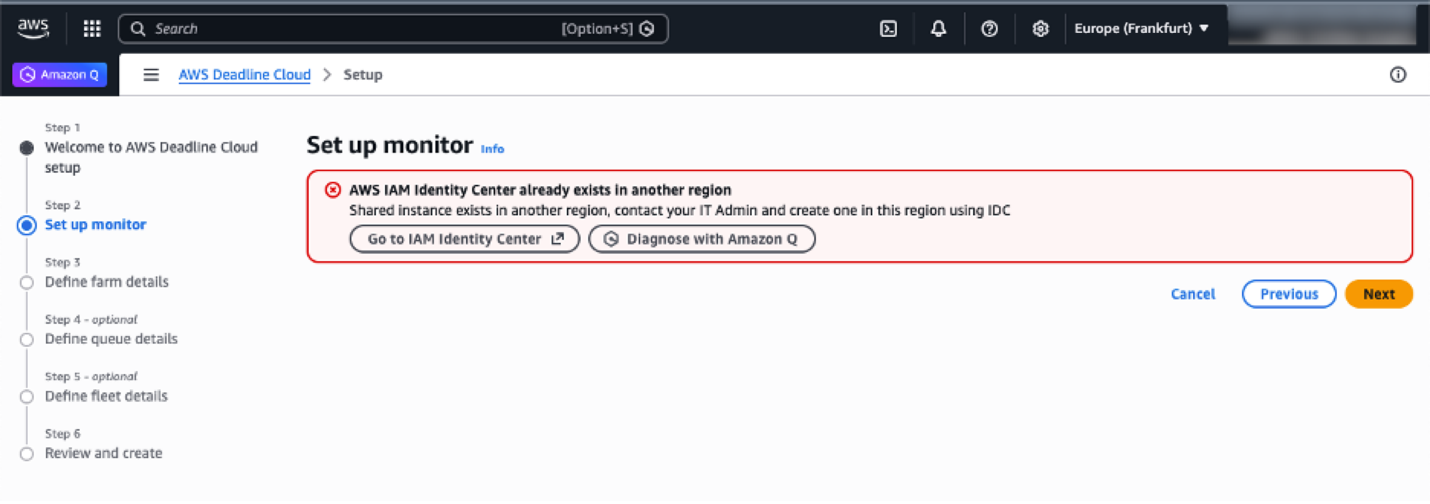
Figure 8: AWS Deadline cloud console wizard when Identity Center isn’t configured in the current Region
Note: Existing deployments of AWS managed applications that use cross-Region calls with Identity Center (for example, Amazon Q Business) continue to function normally. When deploying an AWS managed application that supports cross-Region calls, we recommend configuring it to use Identity Center in the same Region, provided the prerequisites are met. Otherwise, you can configure the application to use Identity Center from one of its enabled Regions. See the respective AWS application’s User Guide to learn if it supports cross-Region calls to Identity Center.
Optional: Automatic failover of domains for AWS access portal
Identity Center provides Regional endpoints for the AWS access portal when you enable multi-Region replication. You can access these Regional instances directly, or you can build a redirection system that intelligently routes users to the nearest available AWS access portal endpoint with failover capabilities.
For a serverless implementation of automatic failover, you can combine several AWS services:
- Amazon Route 53: Manages DNS routing with health checks and geoproximity-based routing policies to redirect users to their nearest Regional endpoint.
- Amazon Application Recovery Controller (ARC): Orchestrates failover logic and provides readiness checks to ensure smooth transitions between Regions during service disruptions.
- Application Load Balancer (ALB): Performs simple HTTP redirects to the appropriate Regional AWS access portal endpoints based on routing decisions.
This setup redirects users to a healthy endpoint in another Region if the primary Region goes down. Geoproximity routing sends users to their nearest endpoint under normal conditions.
Administration and auditing tasks by Region
The primary Region is the central management hub for instance-level configurations, while additional Regions provide Region-local application management and access capabilities. Application management is always performed in the Region where the application was configured.
This table shows the availability of use cases between Regions. The primary Region maintains centralized control over identity and access management, while additional Regions focus onRegion-specific application management and providing resilient access to AWS accounts.
|
Task category |
Primary Region |
Additional Region |
|
Workforce identity management |
Full management of workforce identities and user provisioning |
Read-only |
|
User session revocation |
Revoke user sessions |
Revoke user sessions |
|
Instance-level configuration |
Configuration changes and settings |
Read-only |
|
User assignments to applications (Region-specific) |
For applications in the primary Region |
For applications in an additional Region |
|
Use TIP with applications in the same Region |
Use TIP with applications in the same Region |
|
|
Enable/disable application access |
For applications in the primary Region |
For applications in an additional Region |
|
External IdP configuration |
Manage connection and configuration with external IdPs |
Read-only |
|
Customer-managed applications |
Deploy and configure SAML and OAuth2 applications |
Deploy and configure SAML and OAuth2 applications |
|
AWS account access |
Access AWS accounts through a Region-specific AWS access portal |
Access AWS accounts through Region-specific AWS access portal |
|
Application management (Region-specific) |
Manage applications configured in the primary Region |
Manage applications configured in additional Regions |
|
Account access permissions |
Configure and manage permission sets and account assignments |
Not available |
Conclusion
In this post, you learned how to extend your access to AWS through IAM Identity Center across multiple AWS Regions using multi-Region replication. To replicate your Identity Center instance to additional Regions, you need a multi-Region KMS key, updated IdP configuration, and network access to the new regional endpoints.
With multi-Region replication in place, your users gain resilient, low-latency access to AWS accounts and AWS managed applications through Region-specific AWS access portals. If a disruption occurs in the primary Region, users can continue working using already provisioned permissions through any additional Region. For organizations looking to deploy AWS managed applications beyond Deadline Cloud in additional Regions, consult the AWS managed applications that integrate with IAM Identity Center table in the Identity Center User Guide to verify that the application supports both customer-managed KMS keys and deployment in additional Regions before proceeding.
To explore the full range of IAM Identity Center multi-Region capabilities, including quota management, visit the Using IAM Identity Center across multiple AWS Regions user guide.
If you have feedback about this post, submit comments in the Comments section below. If you have questions about this post, contact AWS Support.